Enabling or Disabling the Accessibility Stamp | Custom Settings

Enabling or Disabling the Accessibility Stamp

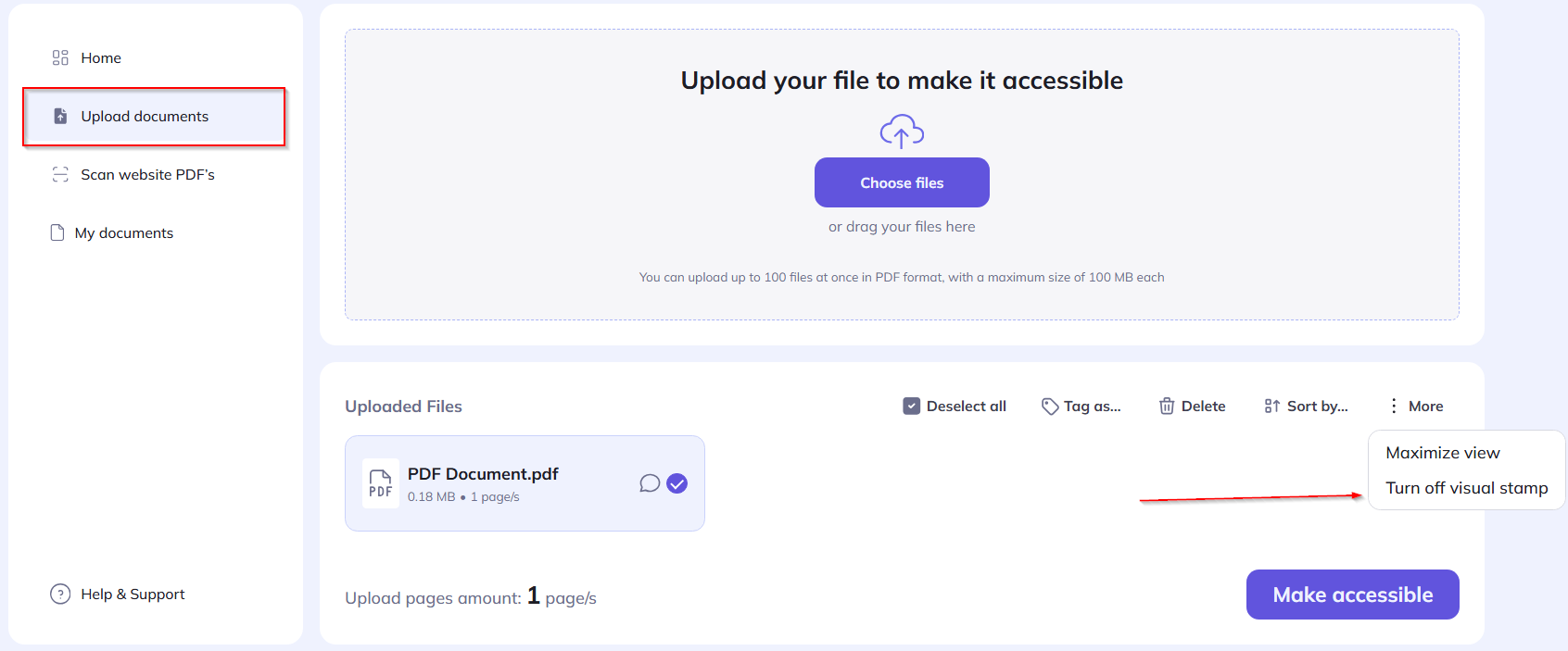
The stamp is enabled by default, but you can choose to disable it during upload.

Steps to Manage the Accessibility Stamp:  

1️⃣ Upload Your Document – Go to the Upload Documents page.
2️⃣ Click “More” – Expand additional settings.
3️⃣ Toggle the Stamp On/Off – Choose whether to include or remove the accessibility stamp.
4️⃣ Process the File – Click “Make Accessible” to proceed.


    • Related Articles

    • Accessibility Stamp Overview

      The Accessibility Stamp is a visual indicator added to documents processed by AccessibleDocs. It confirms that the document meets PDF/UA (Universal Accessibility) standards, ensuring it is fully accessible for people with disabilities. ? Why It ...
    • Enabling or Disabling 2FA

      You can enable or disable 2FA at any time in your account settings. Steps to Enable or Disable 2FA: 1️⃣ Go to Settings: Click on your profile icon in the top-right corner. Select “Settings”. 2️⃣ Open Account Security Settings: Navigate to “Two-Factor ...
    • Applied Accessibility Standards

      AccessibleDocs ensures that documents comply with the PDF/UA (Universal Accessibility) standard. ? What is PDF/UA? A globally recognized standard ensuring that documents are fully accessible to people with disabilities. Supports screen readers, ...
    • Automatic Document Processing

      AccessibleDocs uses AI-powered automation to make documents fully accessible. Processing Steps: 1️⃣ Upload Your Document – Choose a file and start processing. 2️⃣ AI Scans for Accessibility Issues – Detects missing alt text, improper headings, and ...
    • Common Accessibility Issues

      The system automatically corrects:✅ Missing Alt Text – Adds descriptions for images. ✅ Improper Headings – Ensures logical heading structures for easy navigation. ✅ Low Color Contrast – Adjusts colors for better readability. ✅ Table Structure Issues ...